
Trip Details
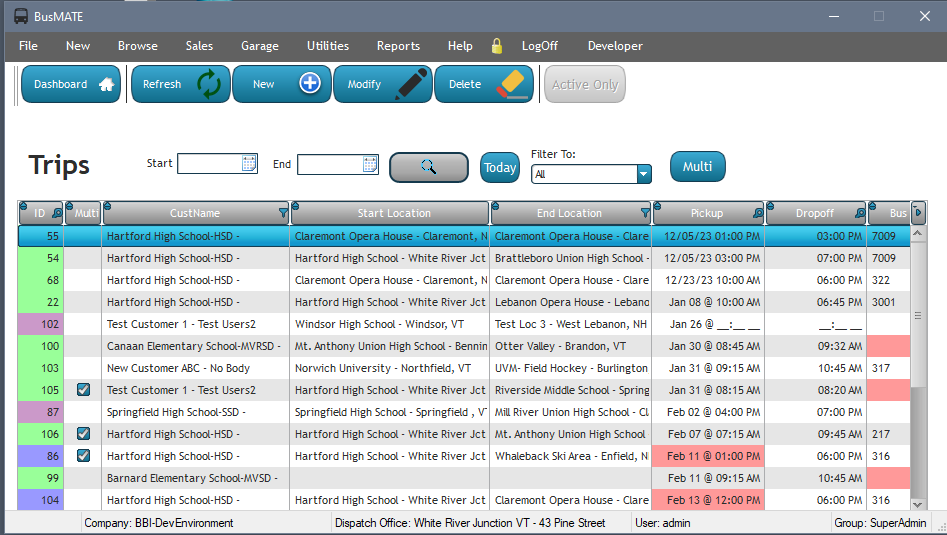
Below is the main listing for the Trips module. Note that it can be filtered based on date range, date range presets, and which dispatch office the trip will run from. The default view is always automatically set to the next 10 days from the current date.
Column Filter and/or Search
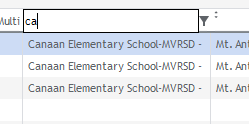
Each column in the main table is filterable individually or in combination with other columns. Simply click on the funnel or magnifying glass in the column title and enter the filter term required.
Date Range Filter
When initially opening the main list of pending trips, you will be presented with all trips of any status from the current date through however many days out you've configured via the preferences. The default date range is 10 days from the current date.
Manually adjusting the start date with automatically update the end date to match. If you wish to search for a range, enter the start date first-then enter the end date. Once the date range has been selected, click the Filter button to apply the filter to the view.
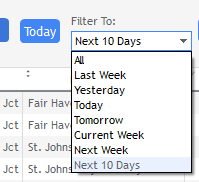
There are pre-defined date ranges available from the drop down menu for the following pre-defined ranged:
- All
- Last Week
- Yesterday
- Today (this additionally has a standalone button to quickly filter the trip list to only today's trips)
- Tomorrow
- Current Week
- Next Week
- Next X Days (x defined in preferences and is the default selection)
Bulk Email Trip Sheets To Selected Driver
Select a trip from the list, then click the "Multi" button at the top. This option is also available by right-clicking on a trip in the list.
The program will automatically find all trips belonging the same driver as currently selected and within the current date range selected, generate trip sheets for each one combined into a single PDF file, then trigger an email with the attachment, auto-entering the to field with the driver's email address, and noting the date range in the subject line.