
Drivers
Drivers can be managed from the drivers module.
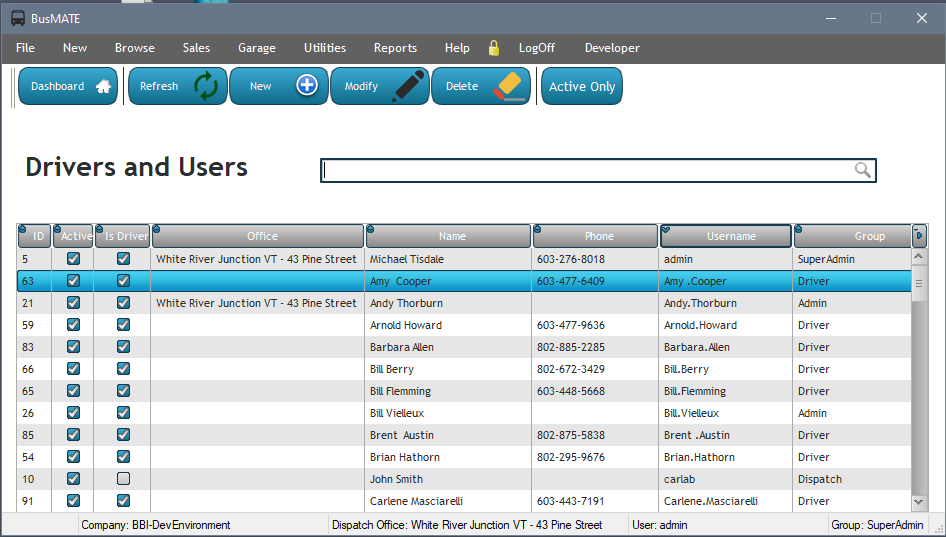
When first entering the drivers module, you can start typing someone's name to auto-filter to that person in the list.
Double-clicking on a list item will open the view/edit window as shown below. (you can also select the item from the list, then choose the Modify button from the toolbar above).
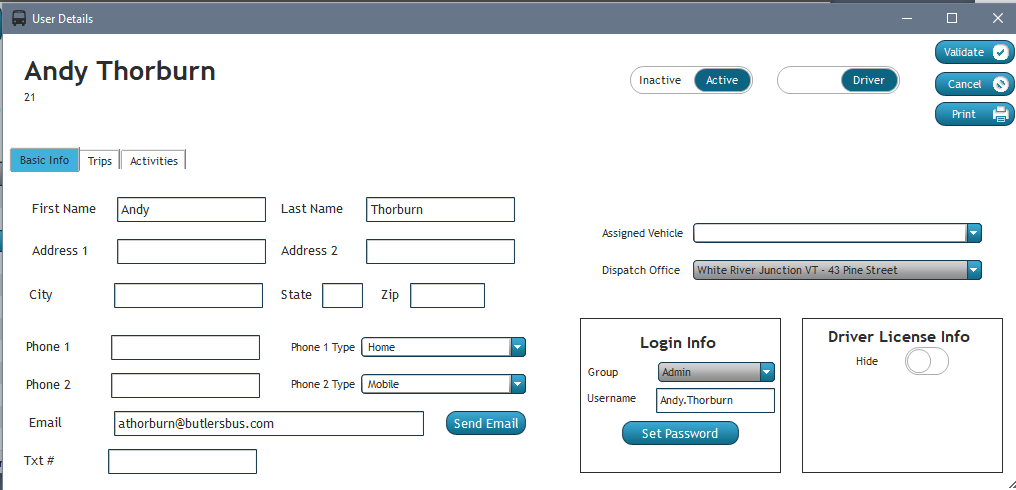
Driver's License info defaults to being hidden until manually toggled to Show
When you open a given driver,, the recorded Driver's License expiration date is automatically checked. If the expiration is less than 45 days away (or has already expired), a prompt is displayed advising how many days before the license will expire.
The two toggle options at the top flag the user as active or inactive (hiding from any drop-down selections, etc) as well as choose whether this person is a normal user of the system or additionally a "driver". If the user is not flagged as a driver, the system will not allow them to be selected as a driver available for a trip.
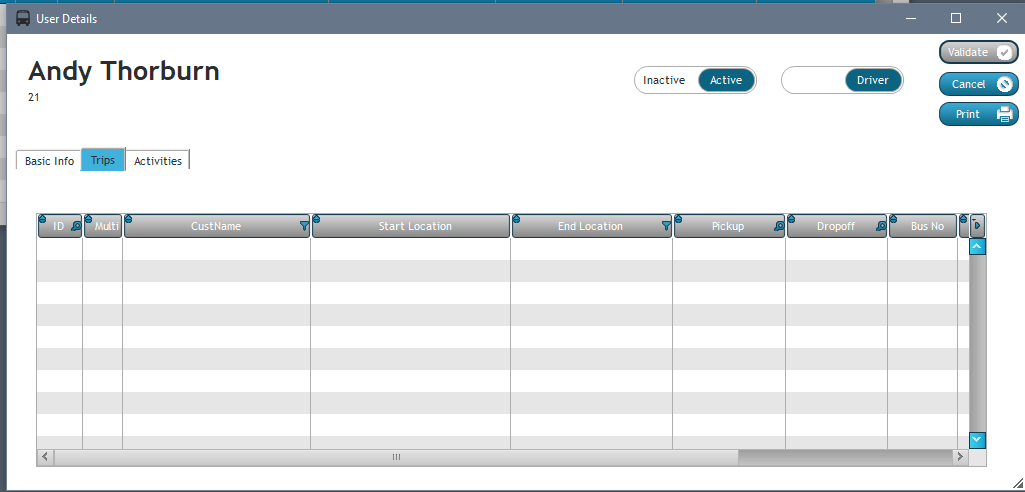
Selecting the Trips tab on this window will show a list of all trips that the current driver/user was assigned to.
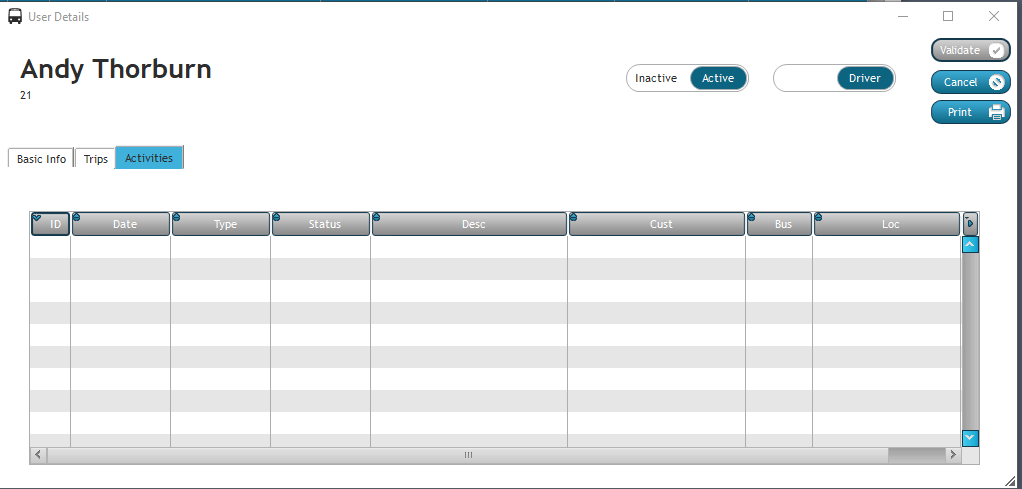
The same is true for the Activities tab where it shows all system activities assigned or created by this user.
After making any changes to a user, click the Validate button in the top-right to save the changes and return to the drivers list.