
Sending a file as a fax
Login to your account at fax.nhvtcloud.com
Enter your 10 digit fax destination number in the box next to the flag icon
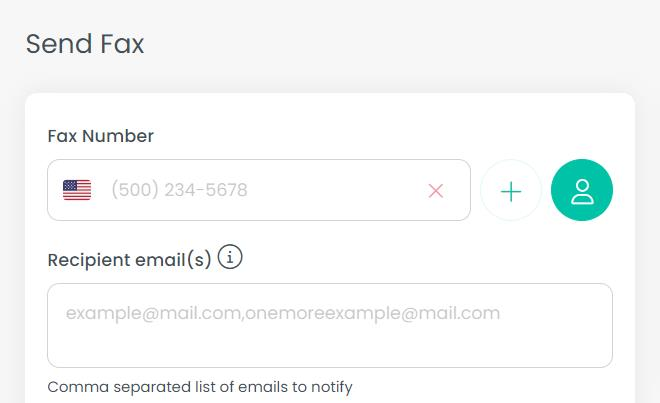
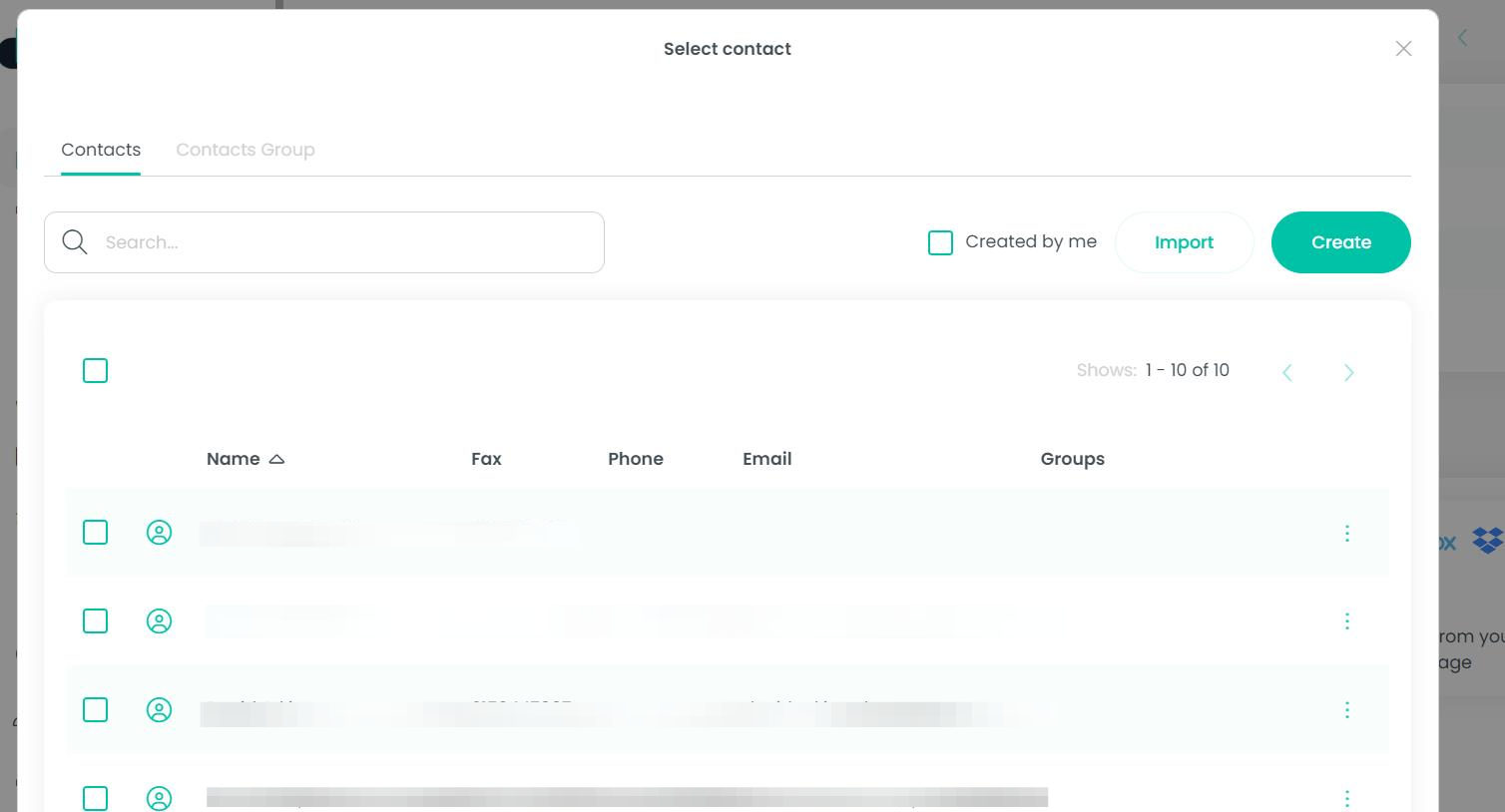
You can also use the contact button to simply select a recipient from your contact list. In this case you do not need to type out the fax number, the system will automatically send to the fax number associated with the contact
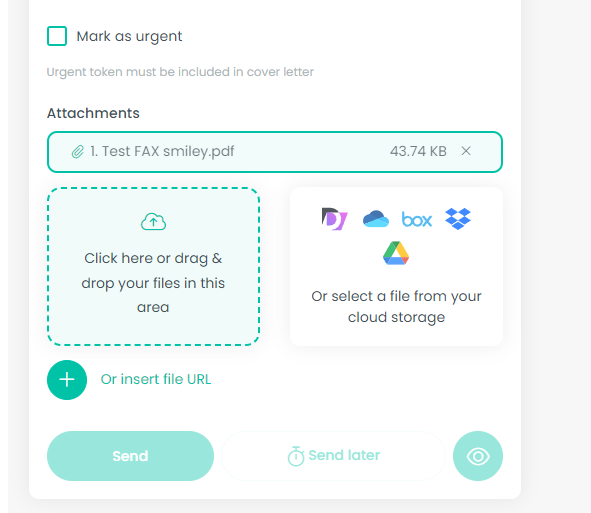
Next, you may select the file you wish to upload, drag & drop from your computer, or upload a file from your cloud storage
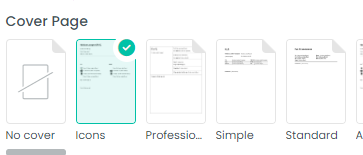
If you'd like to include a cover page simply check the box for the desired cover page in the Cover Page section. Custom cover pages will also be available here to choose from
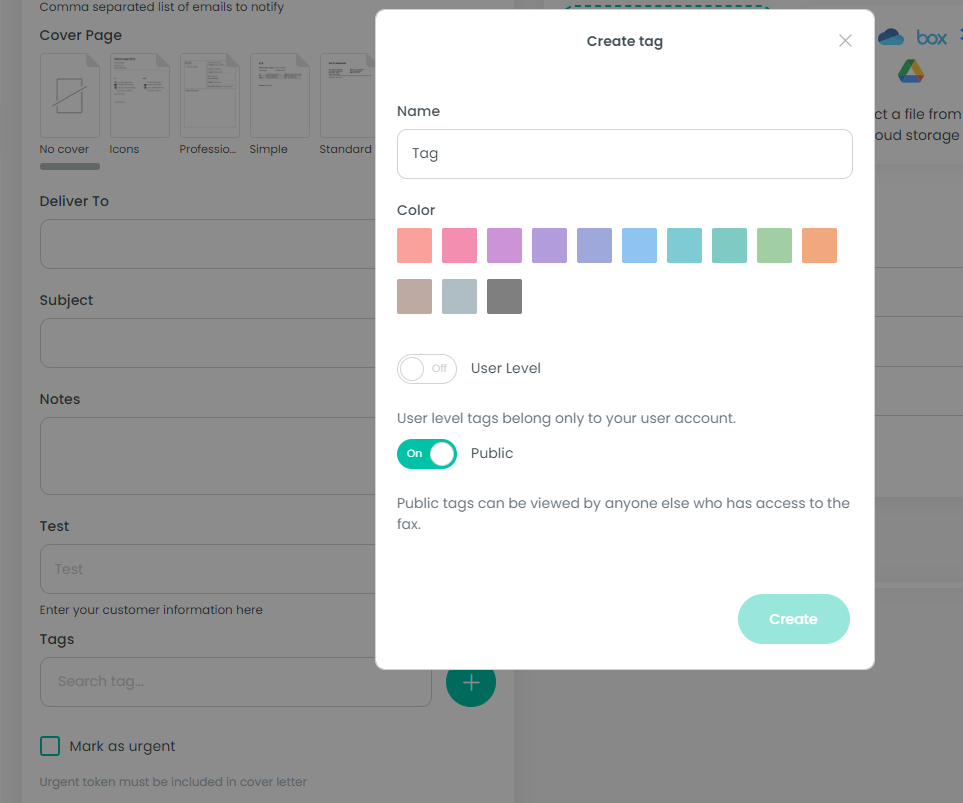
If you wish to add a tag to the fax (this will show up in your fax history) simply click in the tag search bar and search or add tags here
Click the SEND button.
That's it! You will see a pop-up notification confirming your fax was sent.
You can always check the status of a fax on your Fax History page.