
User Interface Mode
Upon launching PDF2JPG Converter, you'll be presented with the below user interface.
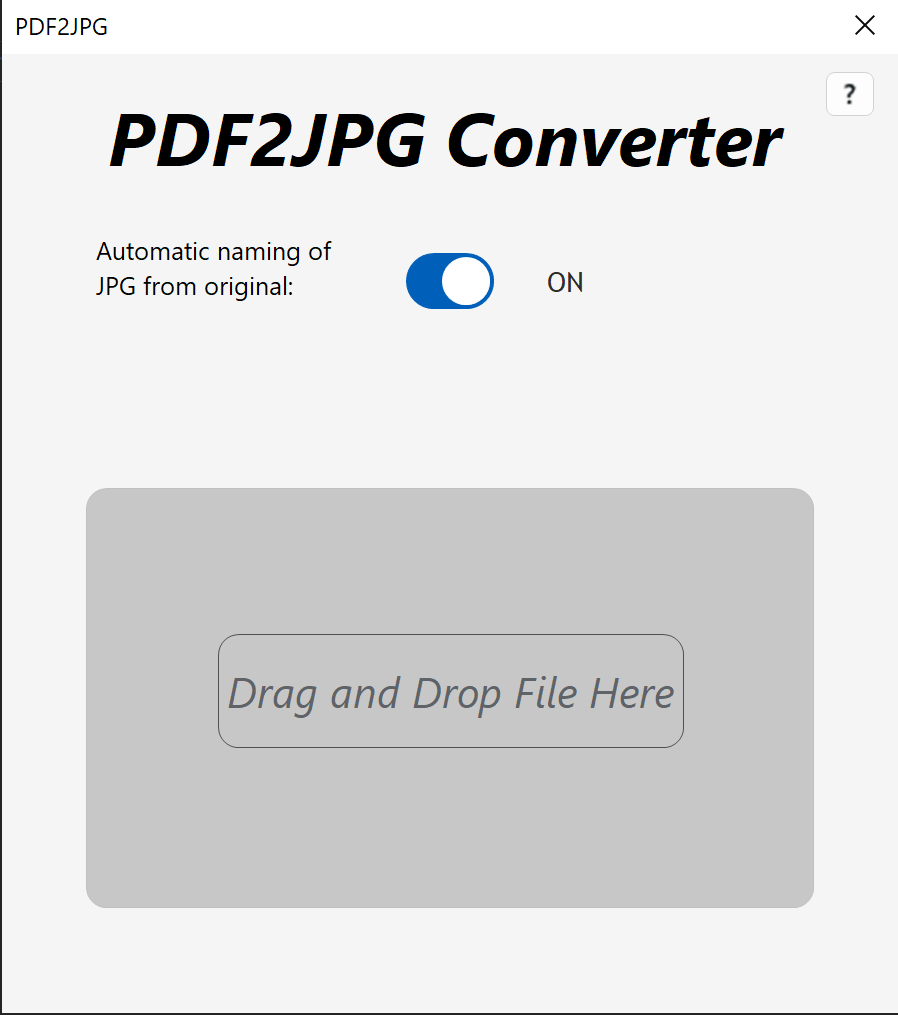
The app will automatically generate individual JPG files (1 for each PDF page) in the same location as the original PDF file. By default, the naming of these generated JPG files will be the original PDF file name followed by a hyphen followed by the page number. For example, the JPG file name for page 23 of a PDF file named "SomeFile.pdf" would be "SomeFile-23.jpg".
If you toggle the automatic naming option to the "Off" position, you'll see an additional field as shown below allowing you to enter the new file name prefix you wish to have. For example, if your original PDF file was something random like "234prhbherhb.pdf" and you wish to ensure the JPG files have something more obviously indicating what it is for, you can enter a more descriptive name for the resulting JPG files. For example, entering "MyFile" in this field will resulting in the above PDF file having JPG files named like "MyFile-23.jpg".
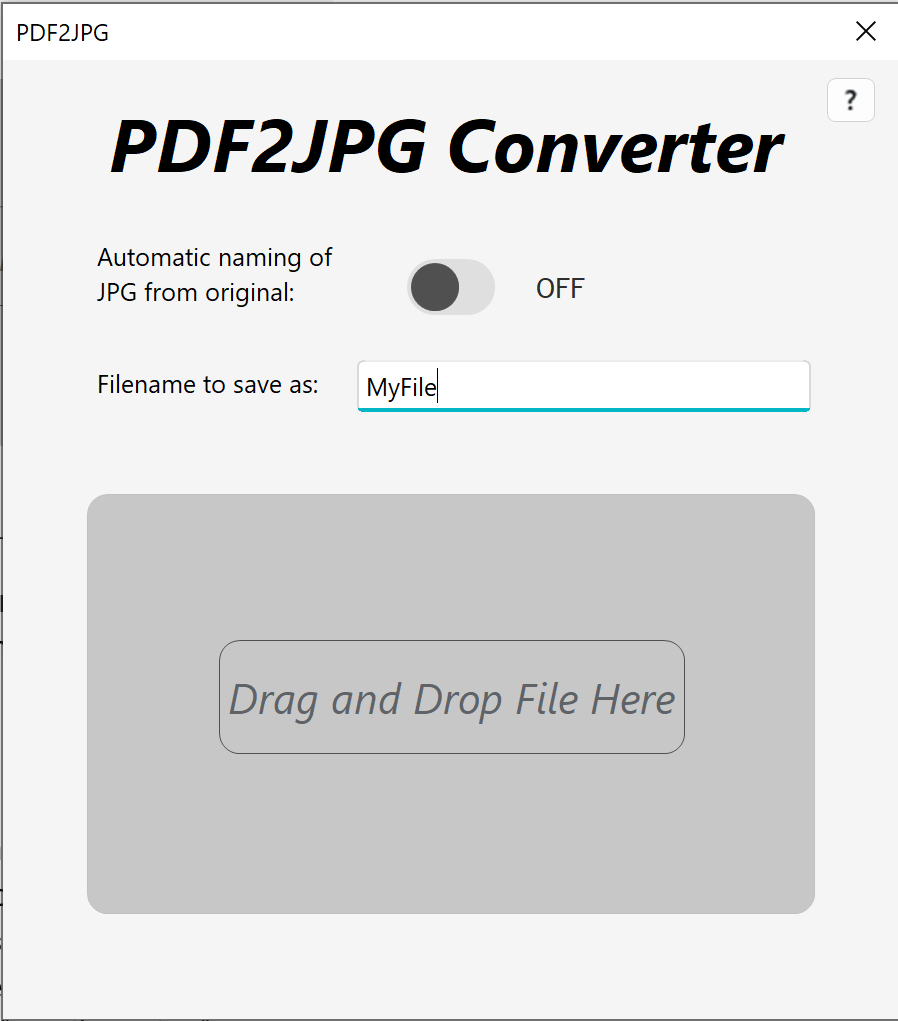
Note that the automatic naming mode is remembered for the next time you open the converter app.