
Trip Details - Overview
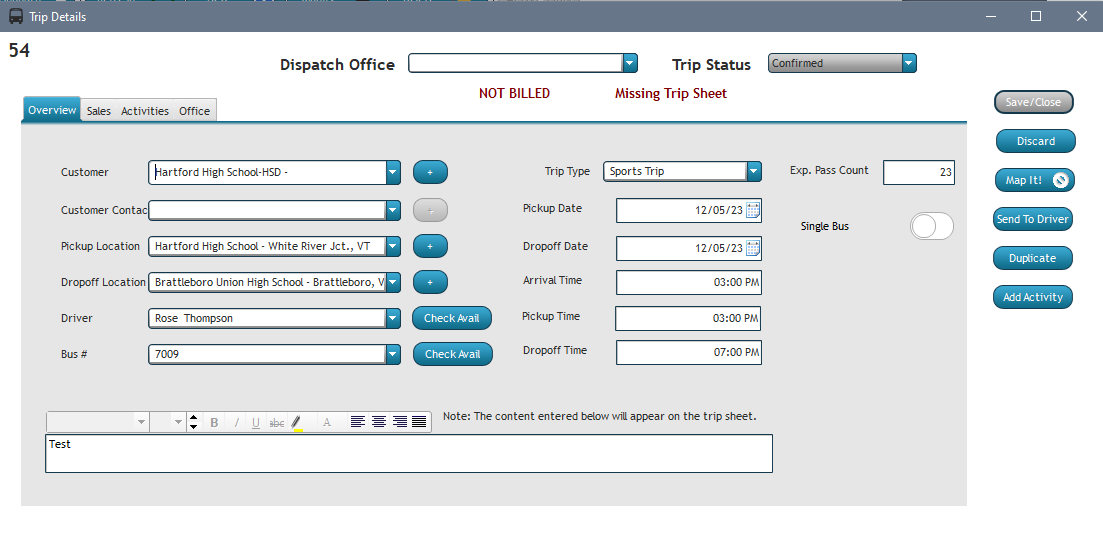
When creating or editing a trip, you will utilize the main trip editing window shown below. Trips details are broken up in overview, sales, activities, and notes.
TRIP STATUS
Trip status of anything other than "Confirmed" will NOT reserve an assigned driver or vehicle if, even if selected here.
ARRIVAL TIME VS PICKUP TIME
Arrival time is automatically calculated every time the pickup time is modified and is automatically calculated based on the default prep time defined at the company level or customer level with the customer level overriding it. If the default calculated arrival time is not sufficient for the trip you're modifying, you can modify the arrival time manually only after entering the pickup time first (otherwise it will overwrite any changes to the arrival time field that you've made). The customer-specific prep time can be set on the customer record itself under the "record defaults" section.
LOCATIONS
Pickup location is automatically filled with the default pickup location if configured in the customer's "Record Defaults" section. If the location in question is a new one, you can click the "+" button to the right of the field to create a new one without leaving the current screen.
DRIVER
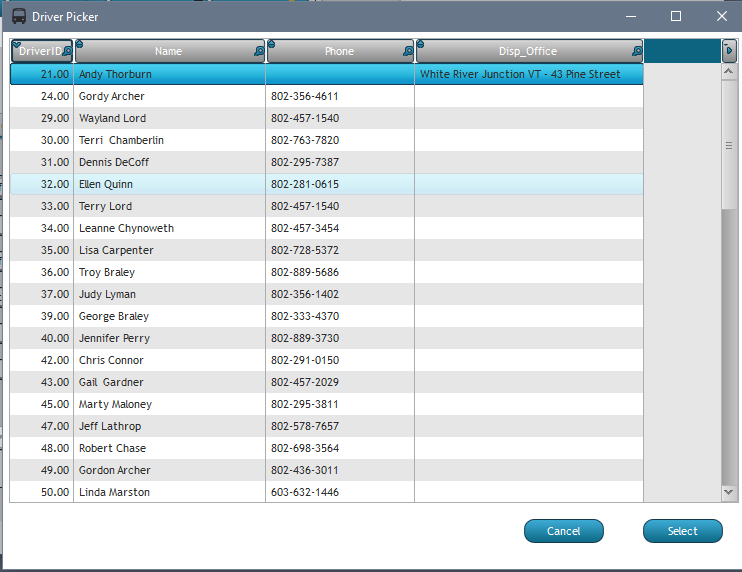
The driver drop-down will allow you to manually select any user in the system that is marked as "active" and as a "driver" regardless of current availability for the selected date and time. Click on the "Check Avail" button to the right of the drop-down to open the driver picker window where you will see a list of all drivers that are not already scheduled for the allotted time span.
VEHICLE
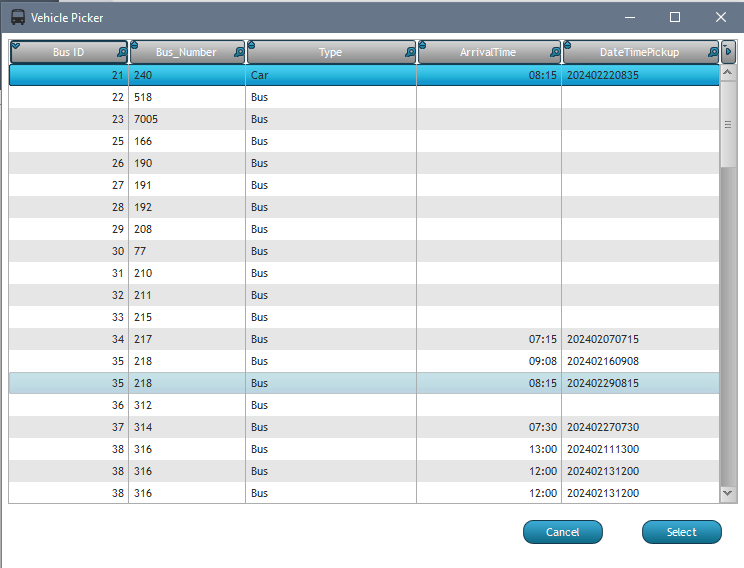
The vehicle drop-down will allow you to manually select any vehicle in the system that is marked as "active" regardless of current availability for the selected date and time. Click on the "Check Avail" button to the right of the drop-down to open the vehicle picker window where you will see a list of all vehicles that are not already scheduled for the allotted time span.
Right-clicking on the button next to Customer, Driver, and Bus will bring up the details window for the currently selected item where details can be updated or their related records can be looked at.
Multi-Bus
Enabling the toggle option multi-bus will make the trip show as multi-bus in the trip lists as well as prominently displayed at the top of the trip sheet to make it clear that there is more than one bus required.
MAP IT!
Clicking on the "Map It!" button will bring up the route with directions in Google Maps using your default web browser.
Trip Sheet
Click on the "Send To Driver" button will open the report viewer with a preview of the trip sheet where you can then email to the driver, save as PDF, or print to a configured printer. If you choose the email option from the toolbar, Outlook will automatically open a compose window with the subject prefilled, the recipient automatically entered with the driver's email address, and the report attached.
Note: Making any changes on an existing record will change the state to "Modified". When you save a window with modifications, two things will happen:
a) You will be prompted to email an updated copy of the trip sheet to the driver so that they will know about the changes.
b) A new "activity" is logged on the trip itself specifying each of the fields that was changed, when, and by who.